Create Slide Decks That Live Inside Articles and Docs

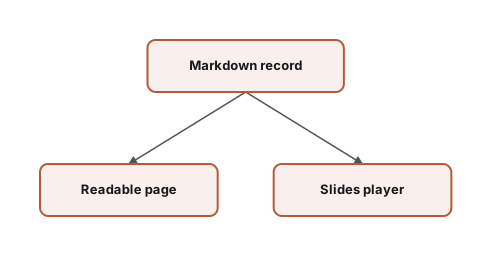
Same record: readable page and presentation player.
Markdown Slides turns one Markdown page into an interactive deck inside an article or document while keeping the complete page readable. The deck above is not an imported PowerPoint or a separately maintained presentation. It is a same-site Markdown page living inside this article. The player is the short path through the idea; the prose below is the long path. Both draw from the same content record.
Keep the idea with the author
On a site where Slides is already enabled, content authors work in ordinary Markdown. They can write it directly or use an AI as an editor to organize, shorten, and maintain the explanation. Slides is not a built-in AI feature that invents content. It makes the Markdown an author already owns usable in both forms.
An AI can help turn an outline into clear Markdown, organize a sequence of pages, and explain one idea in more than one form. It cannot take responsibility for deciding which idea is worth making, whether a claim is true, or what the author really means. Those are the author's work.
That boundary is why a single content record matters. An author can focus on the substance, while an AI helps make the explanation easier to read, shorter to present, or more useful in a document. When the substance changes, there is one record to maintain instead of a separate slide file and article that can drift apart.
One source, two ways in
The body of a deck is still ordinary Markdown. The first pair of --- lines encloses the front matter. After that, a blank-line-separated --- creates a new page. Web Device renders those pages as both a player and a transcript. Readers can move through the 16-by-9 player in place or continue through the transcript below. Use the fullscreen control, press f while the player has focus, or open a ?full URL to enter presentation mode.
That means a presentation is no longer an attachment that only works during a meeting. It can be linked as part of a page, embedded elsewhere on the same site, and opened in presentation mode when that is useful. The transcript remains the content, not a backup shown only when a player fails.
When a page needs speaking prompts, put a standalone HTML comment block on that slide. The note stays beside the corresponding transcript section and stays out of the projected slide. It is useful for public context, not private presenter notes. Reader-facing material and speaker support can therefore share a source file without sharing the same surface.
Write the page, then let the format follow
Start by adding slides: true to a deck's front matter. It makes top-level thematic breaks in the body into page boundaries and retains a readable transcript by itself. When a site has already supplied the player named layout, add layout: slides to select it. They are separate switches: one decides how the body is grouped; the other adds an already-configured player to the page.
The source remains plain Markdown, so an author can write it directly or ask an AI to help improve its structure and explanations. It is not a second visual-authoring system that has to be learned or maintained separately.
---
title: Explain one thing clearly
slides: true
layout: slides
---

## Start with one clear point

This page is still ordinary Markdown.

<!--
This is a speaker note. It appears in the transcript only.
-->

---

## Then take the next step
A site developer enables the player and its named layout once. That is site setup, not each author's work. Once it is in place, authors only select the existing layout: slides and write ordinary Markdown. The player follows the site's existing colors, type, and spacing, so an author does not add another theme or component library. If a site has not enabled Slides, keep slides: true for the readable transcript and ask the site's developer to enable the player before expecting it to appear. The Markdown Slides guide contains the exact site setup.
Put a deck in an article
Once a deck has a route on the same site, use an explicit embed directive to place it in an article or document. Use the deck's site-absolute route, such as the one below. This directive is not a general way to frame arbitrary external pages:
::embed{url="/en/docs/web-device/slides-overview/"}After the player initializes, the embedded surface is a 16-by-9 player that readers can use directly. Opening the deck on its own page shows both the player and the full transcript. Both entry points use the same content, so an article does not need a static screenshot or a second copy of the deck text.
The player is not a second artifact. It gives the same idea a short, interactive form without taking the readable article or document away.
Read the Markdown Slides guide.